
Guide
Connect your CRM
Every lead your designer captures, and every job as it moves, can land in the system you already run: HubSpot, Pipedrive, Jobber, JobTread, GoHighLevel, Salesforce, Zoho, or a Google Sheet. The first two paths need no developer and take about twenty minutes. Every CourtBuildr step below is a picture of the exact screen, with lettered callouts on the controls; the other tool’s side is written out in order.
Where everything lives
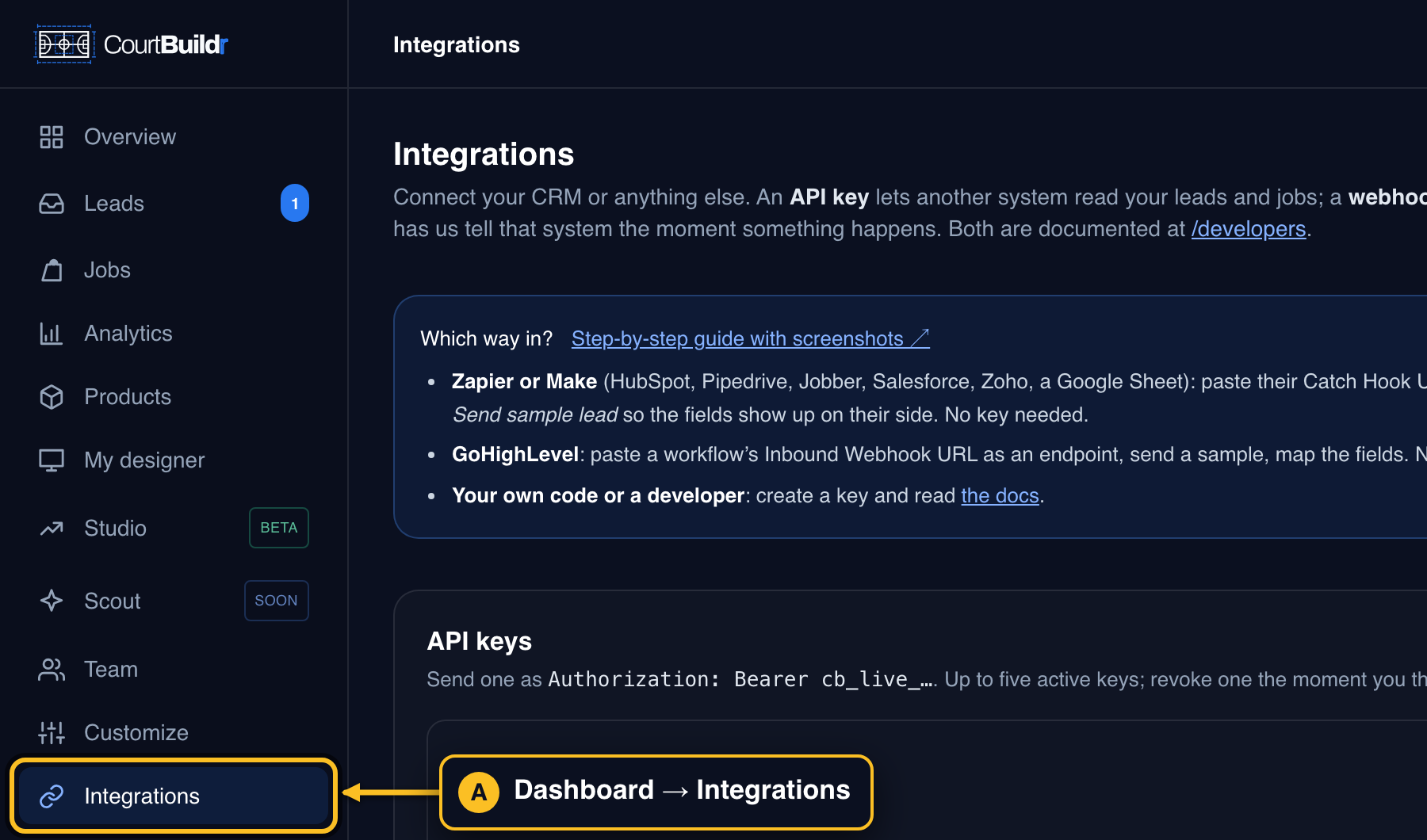
Sign in to your dashboard and open Integrations in the left menu. Everything in this guide happens on that one page, apart from moving a job.
 Tap to enlarge
Leads into HubSpot, Pipedrive, Jobber and friends (via Zapier or Make)
Zapier receives each lead the moment it happens and creates the contact, and if you like a deal, in your CRM. This needs Zapier’s Professional plan or higher: Webhooks by Zapier is a premium app, and the Filter and Formatter steps below are not on the Free plan either. Make’s Free plan includes custom webhooks and works the same way.
- 1In Zapier: make the hook and copy its URL1. ZapierCreate Zap.2. TriggerApp Webhooks by Zapier, event Catch Hook, Continue.3. CopyThe Test tab shows your webhook URL with a Copy button (it starts with hooks.zapier.com/hooks/catch/). Leave this tab open. Make: add a Custom webhook module, Create a webhook, copy its address.
- 2In CourtBuildr: add it as an endpointIntegrations, then down to Webhooks. Paste the URL, type a label, tick
lead.created, press Add endpoint.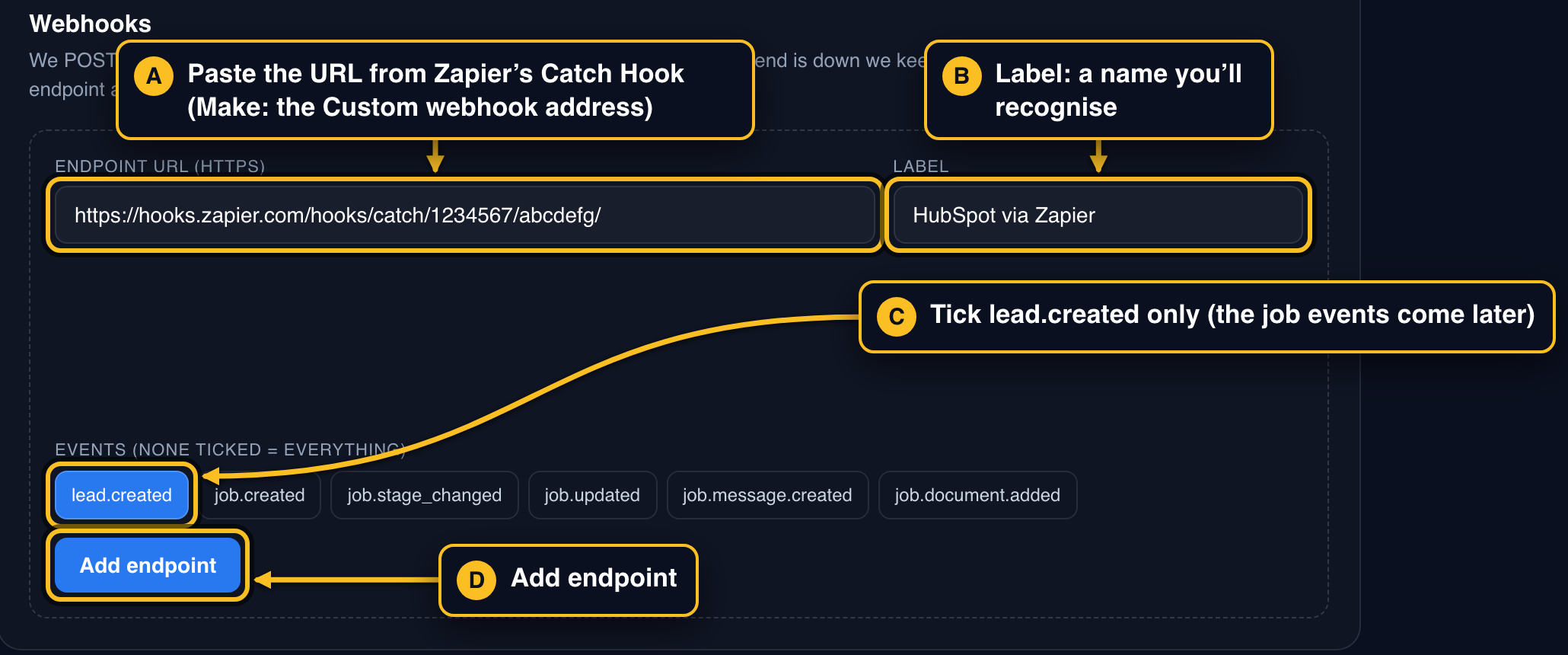 Tap to enlarge
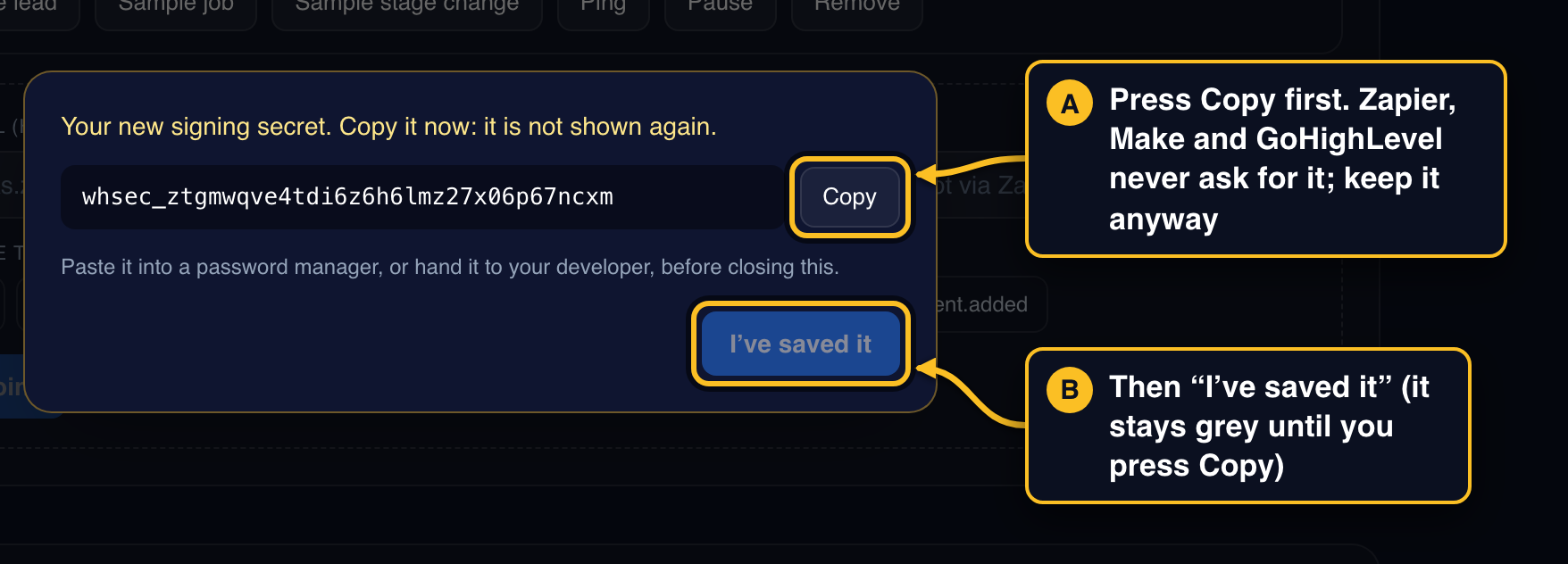
 - 3Press Copy on the signing secret, then “I’ve saved it”It is shown once and I’ve saved it stays grey until you press Copy. Zapier, Make and GoHighLevel never ask for it, but keep it somewhere safe anyway: it is how a developer would prove a message came from us.
 Tap to enlarge
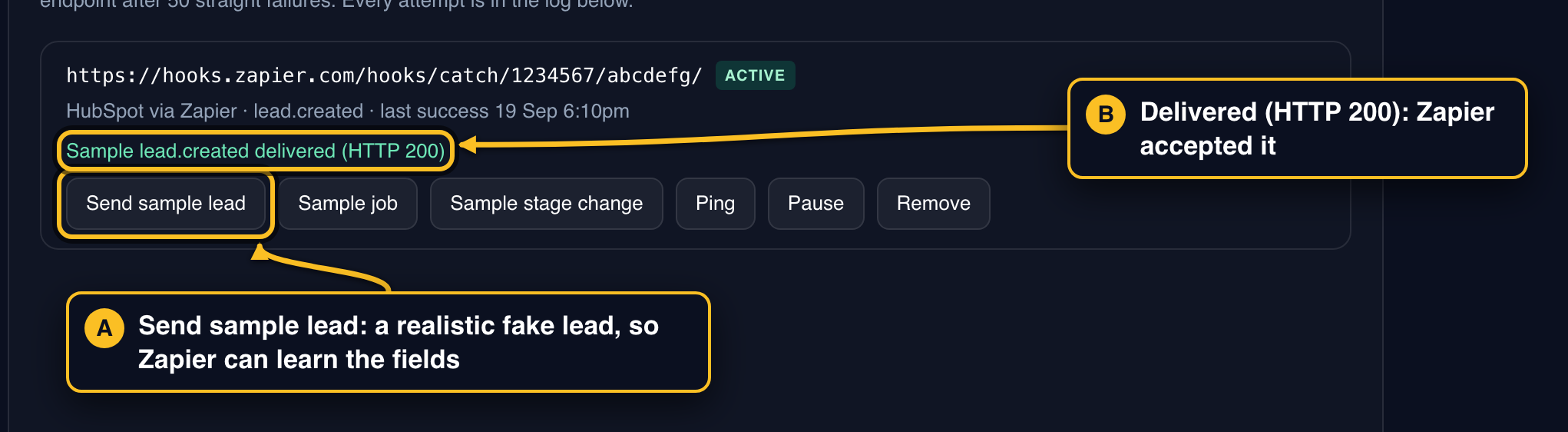
 - 4Press “Send sample lead”A realistic, clearly fake lead (Sample Customer, [email protected]) goes to Zapier right now, so it can learn the fields without you waiting for a real customer. Delivered (HTTP 200) means Zapier accepted it.
 Tap to enlarge
 - 5In Zapier: test the trigger, add the filter, then your CRM1. TestBack on the trigger’s Test tab press Test trigger, pick the newest request (Sample Customer), Continue with selected record. Zapier lists the fields as Data Name, Data Email, Data Phone… (its own name underneath is
data__email; you never type that).2. Filter, right after the triggerPress + and add Filter by Zapier as step 2: Data Email → Exists, AND Test → Does not exist. When you test it Zapier says the sample “would not have continued”: correct, samples are meant to stop here; real leads carry no Test field.3. Your CRMStep 3: HubSpot Create or Update Contact (Pipedrive Find or Create Person, Jobber Find or Create Client, JobTread Create Customer, Salesforce Create Lead, Zoho CRM Create Module Entry with Module = Leads, Google Sheets Create Spreadsheet Row after typing the column headings in row 1).4. MapEmail ← Data Email, First name ← Data First Name, Last name ← Data Last Name, Phone ← Data Phone. Create custom properties in your CRM first (Sport, Court size, Hoop, Design link), press Refresh fields in the Zapier step, then map Data Sport, Data Size, Data Hoop, Data Design Url to them.5. Optional: the moneyStep 4: Create Deal (HubSpot, Pipedrive) or Create Request (Jobber). Amount ← Data Estimated Value Amount, link it to the contact from step 3 (Associated contact / person), and put Data Design Url in the note.6. OnTesting the CRM step really creates Sample Customer in your CRM: delete that contact afterwards. Then Publish. Done. - 6Check the Delivery log any timeThe last 40 messages we sent, with what their server answered. If Zapier is down we retry after 1 hour, 6 hours, 1 day and 3 days on our own.
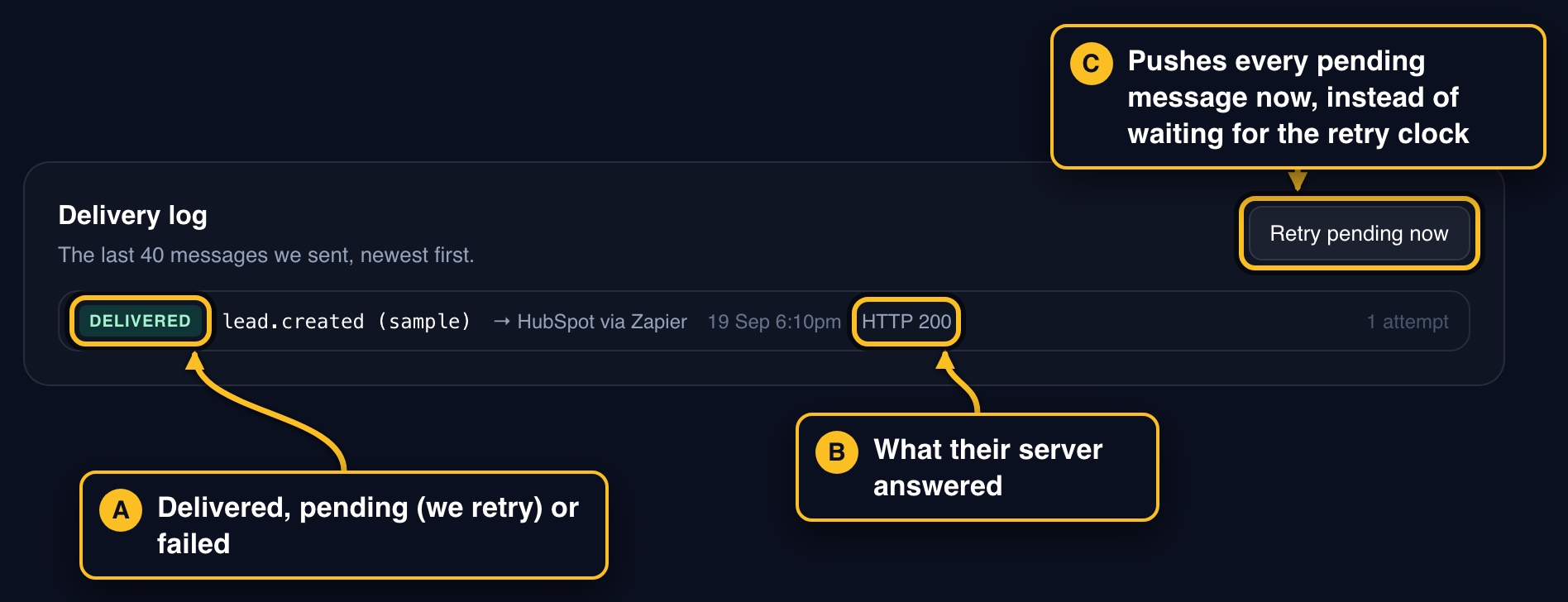 Tap to enlarge
What arrives, and where it goes
This is the sample, with the fields a CRM maps marked. The lead is under data. Zapier shows the fields as Data Email and so on; Make and GoHighLevel show them as data.email.
{1 "id": "b3c1…",2 "event": "lead.created","created_at": "2026-09-15T01:12:09Z","api_version": "2026-09-14",3 "test": true,"data": {4 "id": "aaaaaaaa-0000-4000-8000-000000000001","name": "Sample Customer",5 "first_name": "Sample",5 "last_name": "Customer",6 "email": "[email protected]",6 "phone": "+1 555 010 0199",7 "sport": "Basketball","sport_key": "basketball",7 "size": "26 × 31 ft","width_m": 7.92,"length_m": 9.45,7 "hoop": "72″ adjustable","estimated_value": "$24,500","estimated_value_cents": 2450000,8 "estimated_value_amount": 24500,8 "currency": "USD",9 "design_url": "https://…/design?tenant=you&d=…","ar_url": "https://…/ar?tenant=you&d=…",10 "reason": "quote","status": "new","note": "","created_at": "2026-09-15T01:12:09Z","updated_at": "2026-09-15T01:12:09Z"}}
- 1The message's own id (not the lead's). If a tool ever shows the same message twice, this is what to de-duplicate on.
- 2What happened. Filter on it if one URL takes several events.
- 3Only on samples. Real leads have no
testfield at all, so a filter of “test does not exist” lets real leads through and stops samples. - 4CourtBuildr’s id for the lead. In Zapier it shows as Data Id. Send it back as
lead_idif you ever create the job through the API. - 5Contact first and last name (name is the two together).
- 6Email is always there and is your match key; phone as typed, may be empty.
- 7Custom fields: Sport, Court size, Hoop.
- 8Deal or opportunity amount, as a plain number in this currency. (
estimated_value_centsis the same amount in cents, for developers.) - 9Design link: opens their exact court in your designer. Put it in a note.
- 10Why they left details:
quote(asked for a quote),custom(a shape the designer can’t draw),pdf(downloaded the spec sheet),save(saved their design),abandonorproactive(nudged before leaving). Use it as the source or a tag.
Leads into GoHighLevel
GoHighLevel has its own Inbound Webhook trigger, so nothing sits in the middle. It is one of GHL’s premium workflow features: about a cent a run after the first hundred each month, so cost is not a concern. If you cannot find the trigger, whoever set up your GoHighLevel switches it on: Agency view → Settings → Company → Workflow Premium Features (and rebilling under Accounts → your sub-account). Your agency may run GHL under their own name and logo; the menus are the same, and the webhook URL always starts with services.leadconnectorhq.com.
- 1In GoHighLevel: custom fields, then a workflow with an Inbound Webhook trigger1. Custom fields, onceSettings → Custom Fields → Add Field, object Contact: Sport, Court size, Hoop, Design link as Single line. Two minutes.2. WorkflowAutomation → Workflows → Create workflow → Start from scratch.3. TriggerAdd New Trigger → Inbound Webhook. Copy the URL it gives you. Leave the trigger panel open.
- 2In CourtBuildr: add the URL as an endpointThen press Copy on the signing secret (I’ve saved it stays grey until you do), keep it somewhere safe, and press I’ve saved it. GoHighLevel never asks for it.
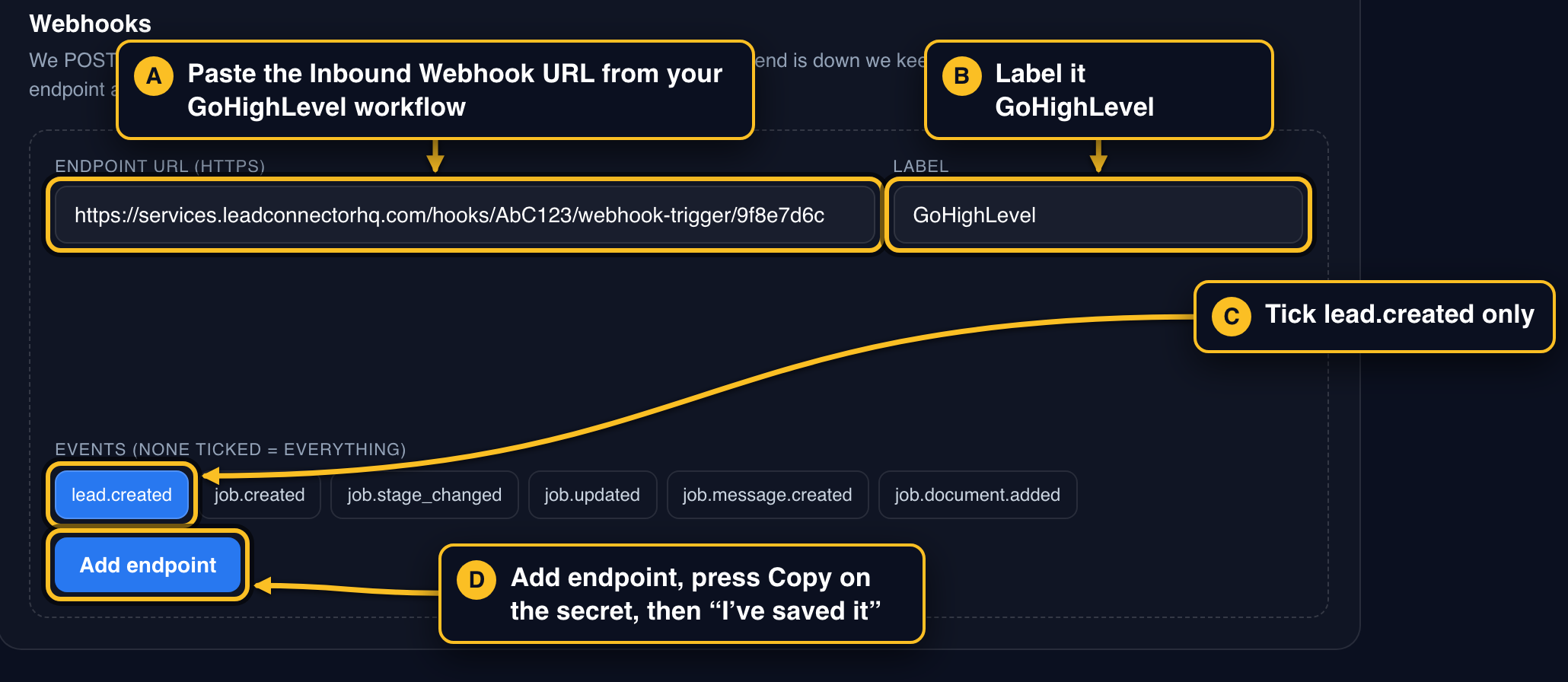 Tap to enlarge
 - 3Press “Send sample lead”A realistic fake lead (Sample Customer) goes to GHL right now.
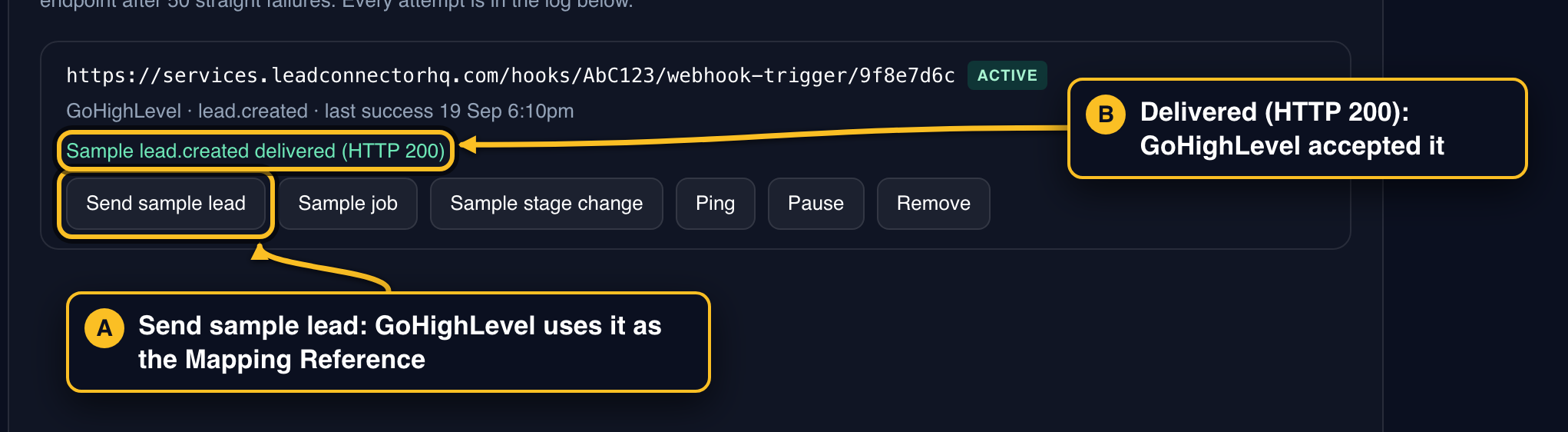 Tap to enlarge
 - 4In GoHighLevel: pick the sample as the Mapping Reference1. Trigger panelPress Test Trigger (some accounts say Fetch sample requests). Under Mapping Reference pick the request at the top of the list: it is the sample you just sent. Press Save Trigger. GHL then drops a Create Update Contact action under the trigger on its own: delete it, the If/Else below goes first.2. How mapping worksIn any action, press the tag icon inside a field and pick the webhook field. GHL inserts a token such as
{{inboundWebhookRequest.data.email}}. Every field of the sample is underinboundWebhookRequest.data. - 5In GoHighLevel: the guard, the contact, the opportunity, publish1. GuardIf/Else first, testing the webhook values (there is no contact yet). Its left side is a field picker, not a typed token: open the Inbound Webhook group and pick
data.email→ Is not empty; add a segment (AND)test→ Is empty. Real leads carry no test field; only samples do. Everything below goes on the Yes branch.2. Create ContactCreate Contact (older accounts: Create Update Contact; it updates a contact with the same email rather than duplicating). First name…data.first_name, last name…data.last_name, email…data.email, phone…data.phone, and your custom fields from…data.sport,…data.size,…data.hoop,…data.design_url. Then Add Contact Tag: court-designer.3. OpportunityCreate/Update Opportunity (or Create Opportunity): your pipeline’s first stage, lead value{{inboundWebhookRequest.data.estimated_value_amount}}(a plain number, no maths needed), name…data.sportcourt.4. PublishSave each action, then flip the toggle top right from Draft to Publish: in Draft the URL accepts messages but nothing runs. Your existing follow-up (SMS, missed-call text back, email) takes it from there.
Keep your CRM in step as jobs progress
A job is a court you are building for a customer. Each stage you move it to lands on the customer’s own page and emails them; the same moment, your CRM can hear about it too. Open the Jobs tab once before you start (that is what creates your pipeline), and if you are on the supply-only pipeline pick it under the ⚙ Portal button on the Jobs tab first.
- 1Make a second hook, and add it as a second endpointA Catch Hook URL belongs to one Zap, so make a second Zap (Webhooks by Zapier, Catch Hook, exactly as before) and paste its new URL here; in GoHighLevel, a second workflow with its own Inbound Webhook. Tick
job.createdandjob.stage_changed. (job.updatedis notes and photos,job.message.createdis the customer writing to you,job.document.addedis a quote or plan you attached.)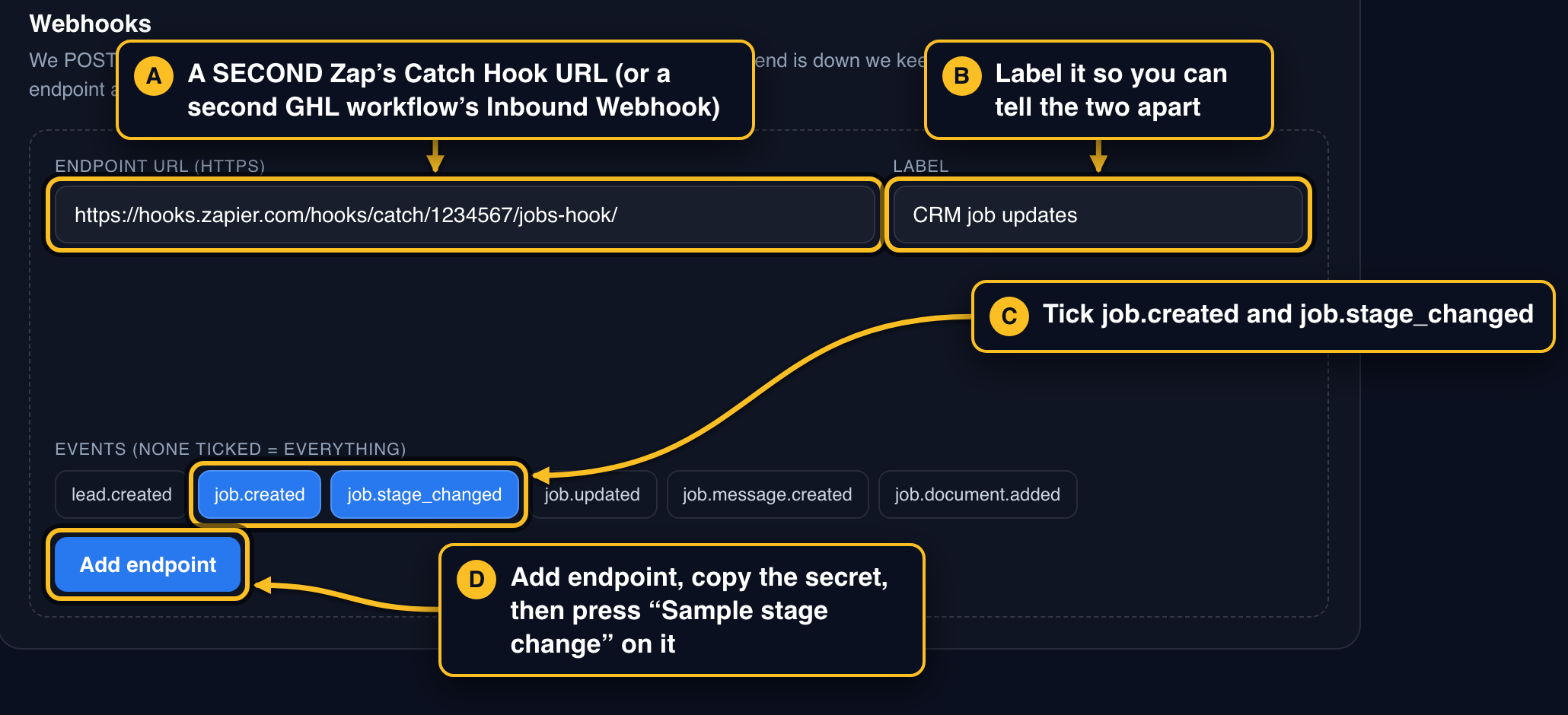 Tap to enlarge
 - 2Press “Sample stage change”Your tool learns the job shape before any real job moves. Samples carry
test: truehere too, so filter it out the same way. GoHighLevel: back in the second workflow’s trigger panel, Test Trigger, pick this request as the Mapping Reference, Save Trigger, exactly as in the leads workflow.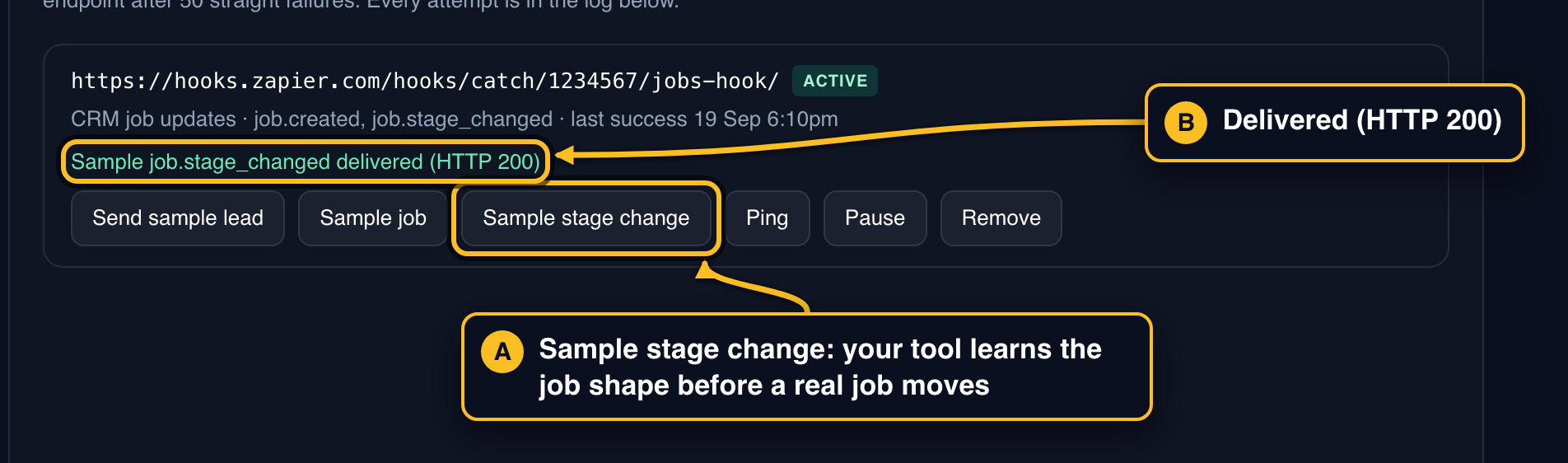 Tap to enlarge
 - 3Now a real one: Jobs, open the job
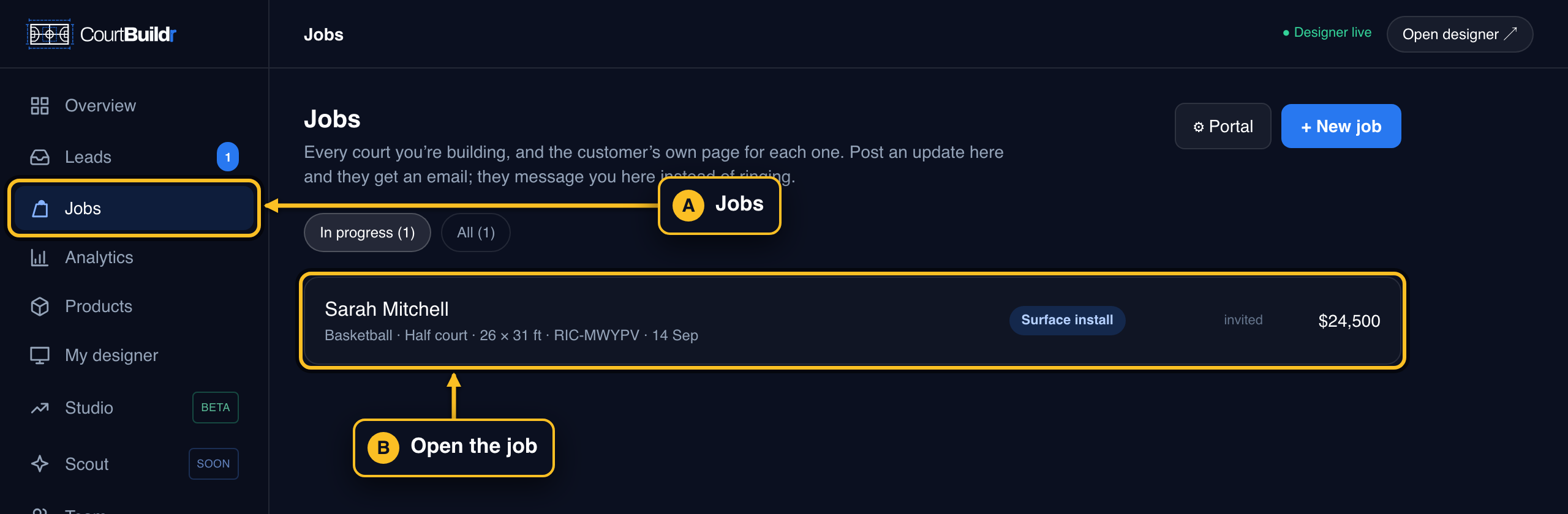 Tap to enlarge
 - 4Pick the new stage, write the note, Move stage & postThe customer gets the email and their page updates, and
job.stage_changedgoes to your endpoint the same moment. Nothing shows in your CRM yet: the Zap or workflow that turns it into a deal update comes next, and this real move is the record you will test it with.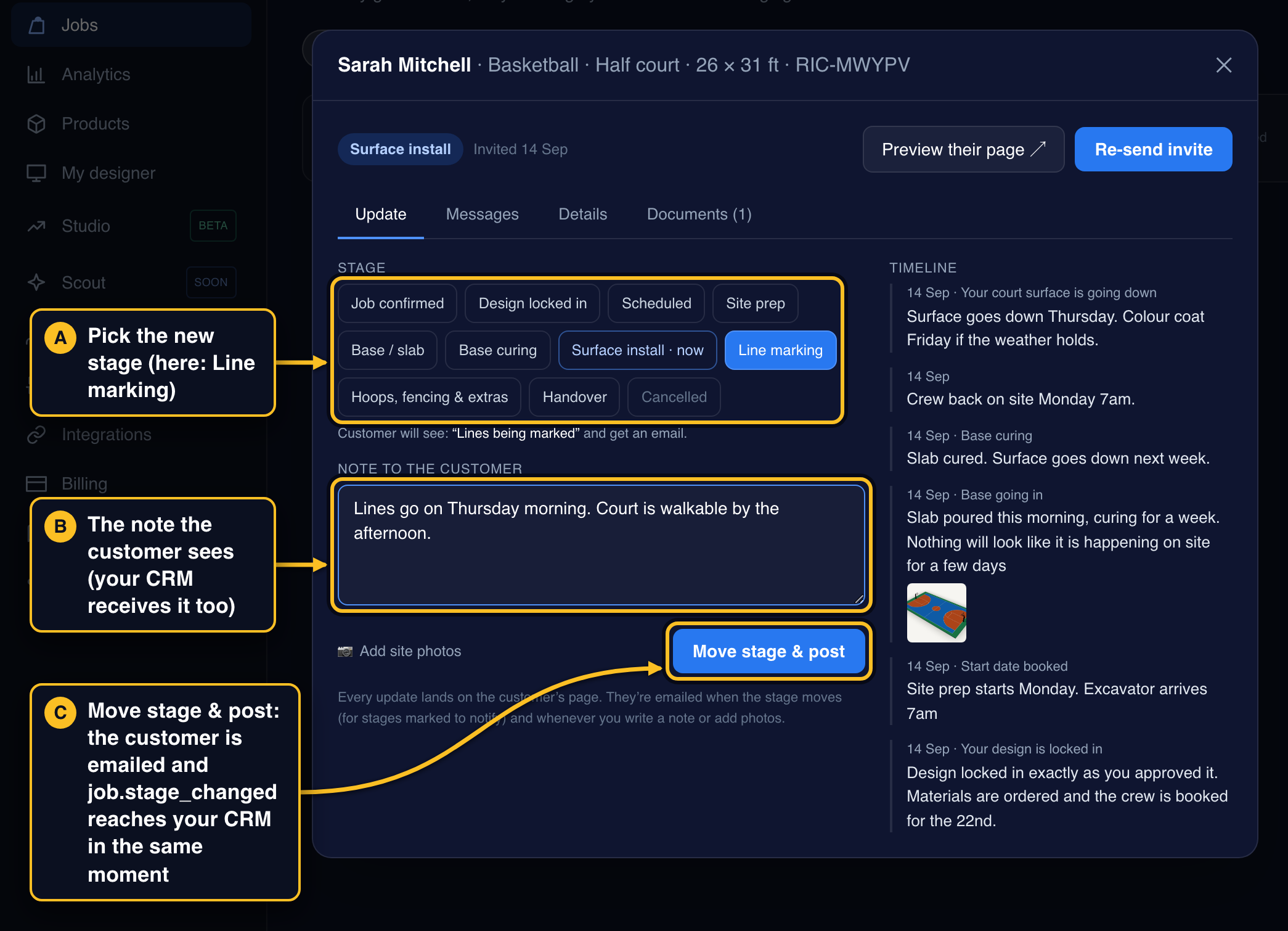 Tap to enlarge
 - 5Map the stages to your pipeline, once1. Zapier: the shapeIn the second Zap: Filter (Test → Does not exist), then Paths by Zapier on Data Event: one path for
job.created, one forjob.stage_changed.2. Zapier: job.created pathFind Contact by Data Job Customer Email, then Create Deal associated to it, with a “Job number” deal property ← Data Job Number (create that property once: HubSpot Settings → Objects → Deals → Manage deal properties).3. Zapier: job.stage_changed pathFormatter → Utilities → Lookup Table: key Data Job Stage Key, one row per stage from the table below, value = your CRM’s stage id (HubSpot: Settings → Objects → Deals → Pipelines, the </> icon beside each stage; Pipedrive: Settings → Pipelines, the number in the URL). Then Find Deal by Job number ← Data Job Number, and Update Deal with Deal Stage set to Custom ← the Lookup output. Jobber has no stages: Find or Create Client then Add Tags to Client ← Data Job Stage Label.4. Zapier: test and publishTest trigger → pick the real move from step 4 (not Sample Customer) → test each step → Publish.5. MakeA Router onevent, then ondata.job.stage.key, one route per stage, each updating the deal.6. GoHighLevelIn the second workflow: Find Contact by email{{inboundWebhookRequest.data.job.customer.email}}→ on its Contact Found branch, Find Opportunity (your pipeline, latest) → on its found branch, If/Else on{{inboundWebhookRequest.data.job.stage.key}}, one branch per stage, each an Update Opportunity to the matching pipeline stage. Without Find Opportunity the update has nothing to act on and is skipped. Then Draft → Publish.Your stage keys
Construction pipeline (the default) Job confirmed received Design locked in design_locked Scheduled scheduled Site prep site_prep Base / slab base Base curing curing Surface install surface Line marking lines Hoops, fencing & extras fit_out Handover handover Canceled cancelled Supply-only pipeline Order confirmed received Design locked in design_locked In production in_production Ready to dispatch ready Dispatched shipped Delivered delivered Complete complete Canceled cancelled
What a stage change looks like (the sample, as “Sample stage change” sends it)
{1 "event": "job.stage_changed",2 "test": true,"data": {"job": {3 "number": "SMP-TEST1",3 "external_ref": "CRM-12345","stage": {4 "key": "site_prep","label": "Site prep","customer_label": "Site prep under way"},"customer": {"name": "Sample Customer",5 "email": "[email protected]","phone": "+1 555 010 0199"},"price": {6 "amount_cents": 2450000,"paid_cents": 1225000,"currency": "USD"},"key_dates": {"start": "2026-10-01","install": "2026-10-15","handover": "2026-10-24"},7 "portal_url": "https://…/portal/jobs/…",…},4 "previous_stage": "scheduled","update": {8 "note": "Slab poured this morning, curing for a week.","photo_count": 2}}}
- 1
job.createdwhen a job is made;job.stage_changedwhen it moves;job.updatedfor a note or photos;job.message.createdwhen the customer writes;job.document.addedfor a quote or plan you attach. - 2Only on samples, exactly as for leads. Filter it out.
- 3Our job number (Zapier: Data Job Number).
external_refis your own id, filled only when a developer creates jobs through the API (the sample shows CRM-12345 as an example); a job made from the dashboard has null here. - 4The new stage key and the old one (Zapier: Data Job Stage Key, Data Previous Stage). The keys are in the table below.
- 5Match the contact by email (Zapier: Data Job Customer Email).
- 6Agreed price and what’s been paid, in cents (Zapier: Data Job Price Amount Cents).
- 7The customer's own page. Handy in the deal record.
- 8The note you wrote (Zapier: Data Update Note). Log it as an activity.
Give a developer access
If you have someone technical, or a CRM that can call APIs itself, they get an API key and the reference at /developers. With it they can create and move jobs from your CRM, pull leads on a schedule, and verify every message’s signature.
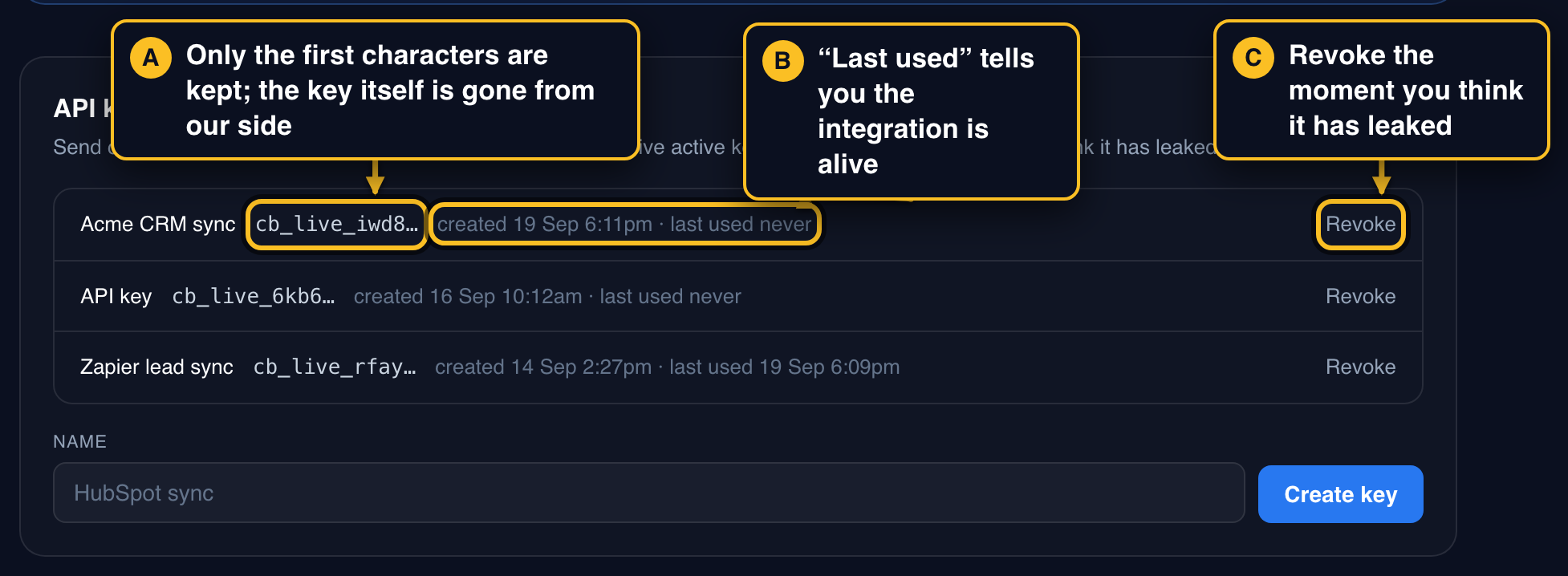
- 1Integrations → API keys → name it → Create keyName it after the system that will use it, so you know what to revoke later.
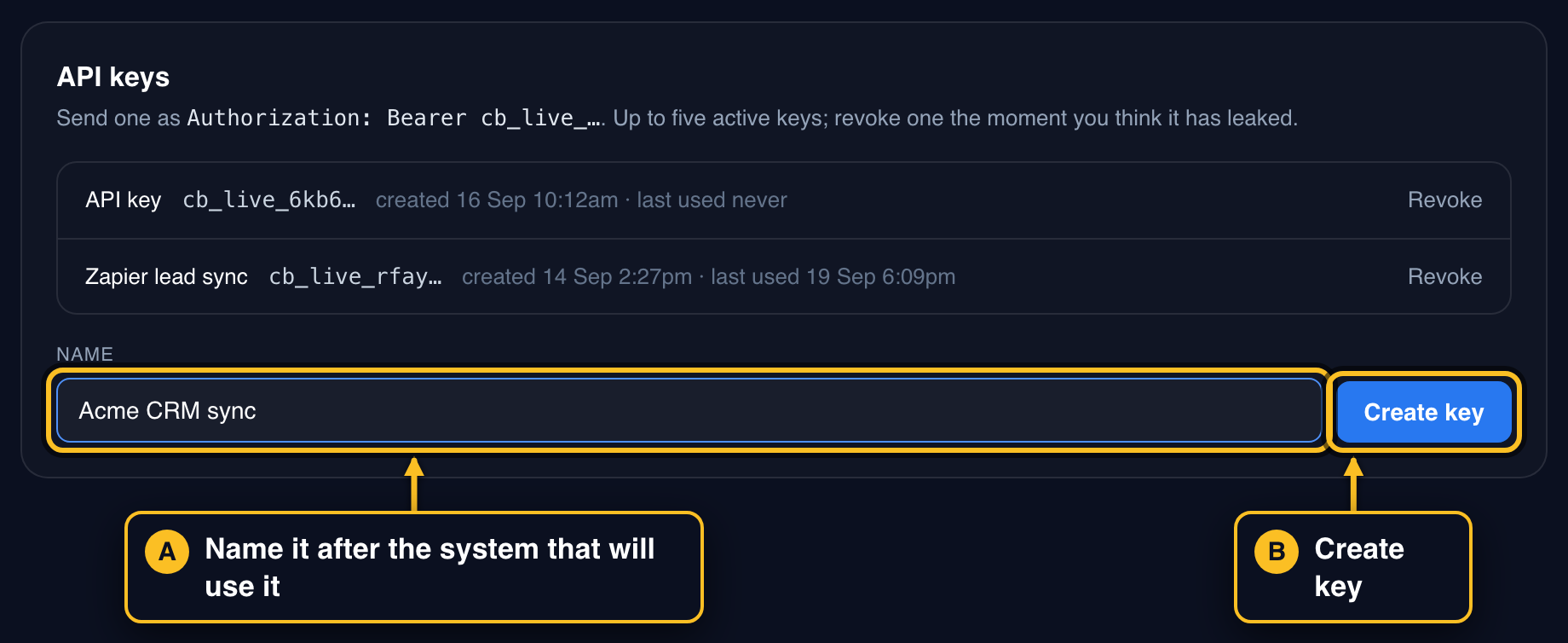 Tap to enlarge
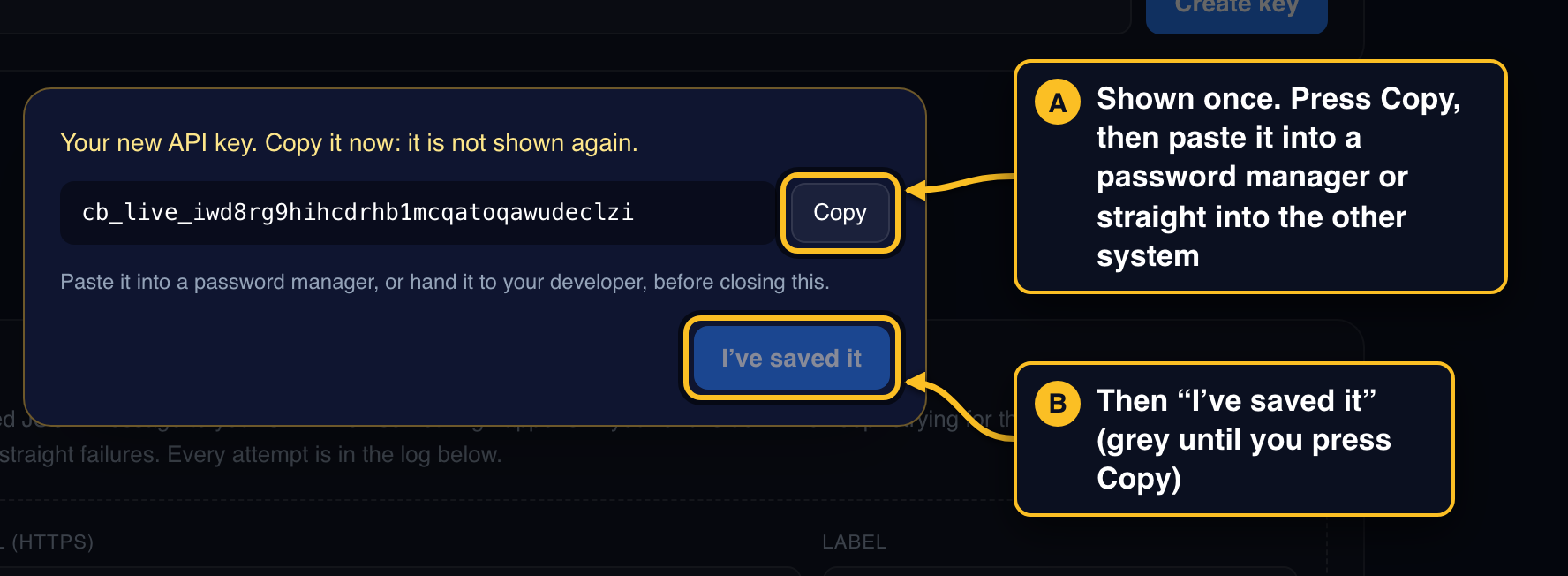
 - 2Press Copy on the key, then “I’ve saved it”It is shown once. Paste it into a password manager or straight into the other system. I’ve saved it stays grey until you press Copy.
 Tap to enlarge
 - 3It appears in the list; revoke it if it ever leaksUp to five keys at a time. “Last used” tells you whether the integration is alive.
 Tap to enlarge
 - 4Send them to the docs
courtbuildr.com/developershas every endpoint and the exact JSON;courtbuildr.com/api/v1/openapi.jsonimports into Postman or a code generator.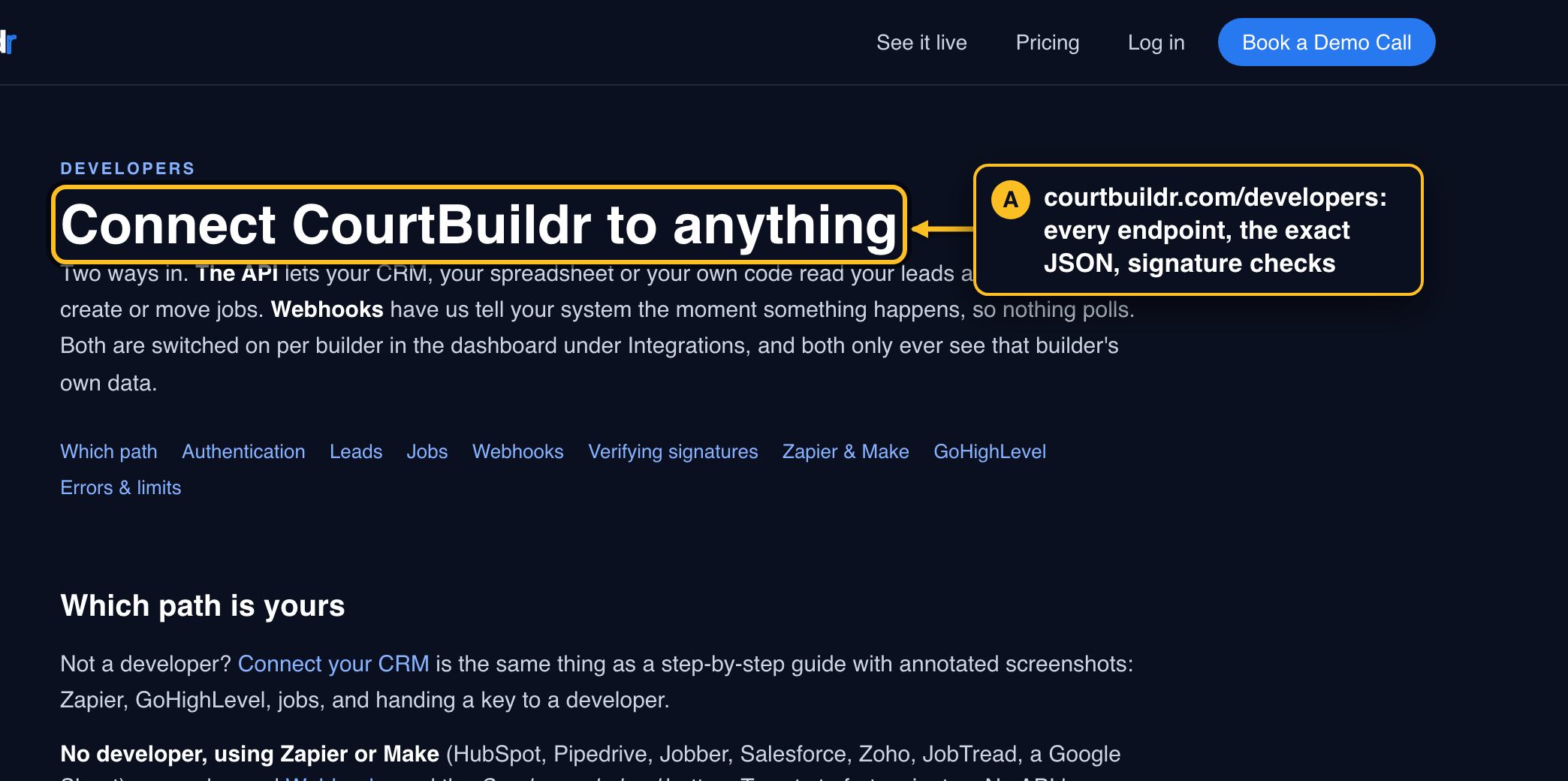 Tap to enlarge
If something is off
Nothing arrived. Look at the Delivery log first. Delivered · HTTP 200 means we handed it over and the problem is on the other side: in Zapier, a Zap turned off or the Filter stopping it (open the Zap’s History); in GoHighLevel, the toggle still on Draft, the trigger not saved after you picked the Mapping Reference, or the If/Else (open the workflow’s Execution Logs). Failed · HTTP 4xx/5xx means their URL rejected it: re-copy the URL, or check the tool’s own log. No row at all means no event fired: a sample proves the wiring, a real lead proves the designer.
Leads arrive twice. You have the Customise-tab lead URL and an Integrations endpoint pointing at the same system. Clear one.
Samples are getting into my CRM. Every sample carries "test": true and the email [email protected]. Zapier: a Filter right after the trigger with Test Does not exist. GoHighLevel: an If/Else where {{inboundWebhookRequest.test}} is empty. Or delete the sample contact after mapping.
The endpoint says paused. After 50 failures in a row we stop trying so a dead URL cannot pile up; fix the URL, press Resume, then Retry pending now. Between failures we retry on our own after 1 hour, 6 hours, 1 day and 3 days.
A field is missing. Leads captured before a field existed come through with it empty or null; nothing is ever renamed. The full shape of every message is at /developers.